
Millions of people still use TVs that work perfectly but don’t have built-in apps like Netflix, YouTube, or Spotify. If you’re one of them, you might think your only option is to buy a brand-new smart TV. But that’s not true. You can easily give your old TV smart features without spending a fortune or needing tech knowledge. In fact, with just a small plug-in device and a few minutes, your old TV can feel brand new.
The good news is that you don’t need to be a techie to do this. Everything can be set up using simple steps that anyone can follow. And the result? You’ll be able to stream movies, listen to music, browse the web, and even mirror your phone to your TV all from the comfort of your home.
Let’s walk through how this works, why it’s affordable, and what you need to get started.
READ ALSO: The Dark Side of Tech: How to Protect Your Privacy in 2025
What Does a “Smart TV” Really Mean?
The term “smart TV” might sound advanced, but it simply means a TV that can connect to the internet and run apps like YouTube, Netflix, Prime Video, or even your local news app. These apps give you more options than regular TV channels. You can watch what you want, when you want.
Smart TVs often come with a remote that lets you browse apps and connect to Wi-Fi. But the truth is, a smart TV is just a TV with a computer system built inside. You can add that system yourself using a small streaming device.
Turning a Regular TV into a Smart TV
If your current TV has an HDMI port (which most modern TVs have), then you already have everything you need. Devices like the Amazon Fire Stick, Google Chromecast, and Roku Streaming Stick are small tools that plug into this port and give your TV smart features instantly.
These devices are easy to use and affordable. You simply plug them in, connect them to your Wi-Fi, and start downloading the apps you want to use. The screen will guide you through everything step by step. No tech skills needed.
Amazon’s Fire Stick, for example, is shaped like a USB stick. You plug it into the HDMI port at the back of your TV and use the included remote to control everything. Google Chromecast works a little differently, it allows you to “cast” videos and apps from your phone to your TV screen, which can feel more natural if you’re already used to using your phone.
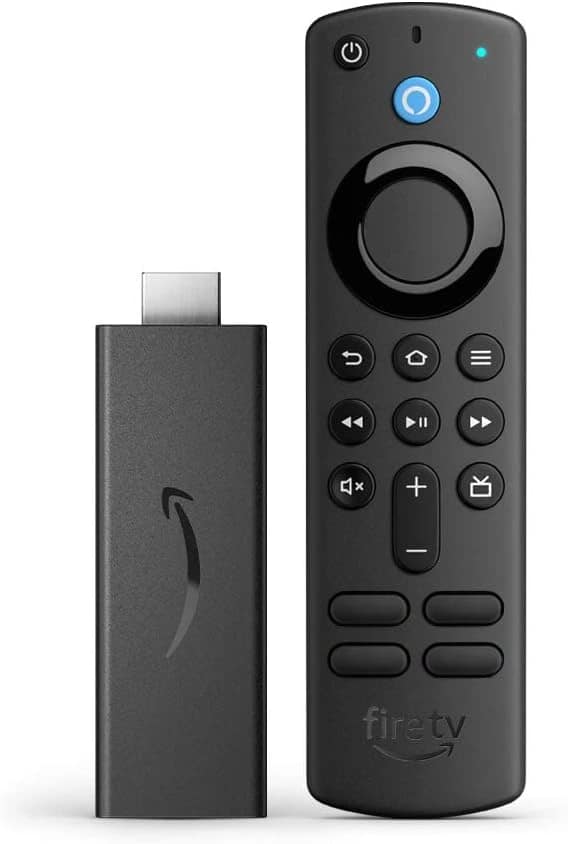
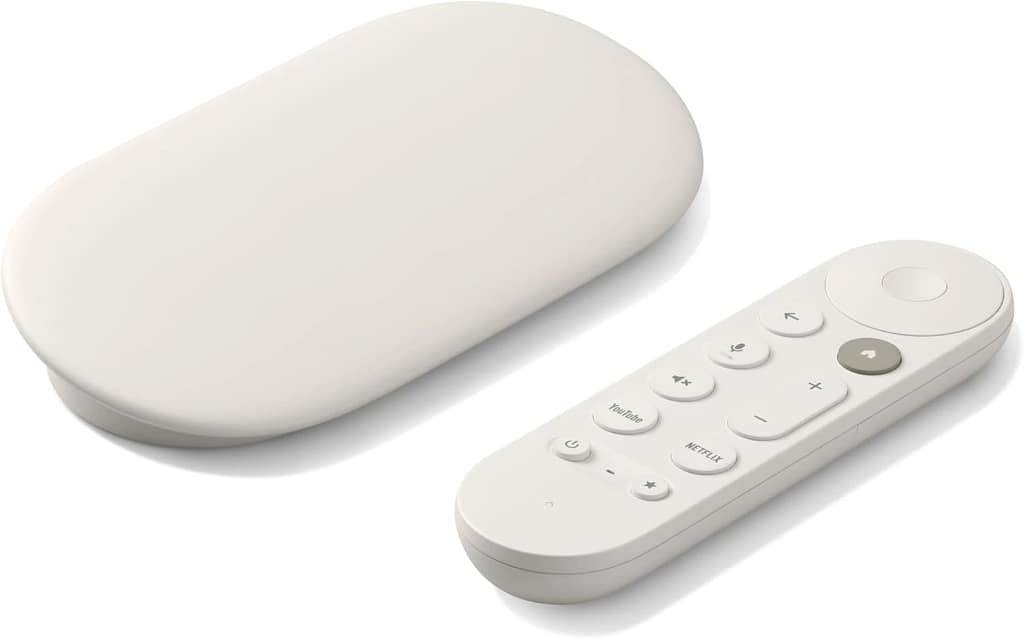
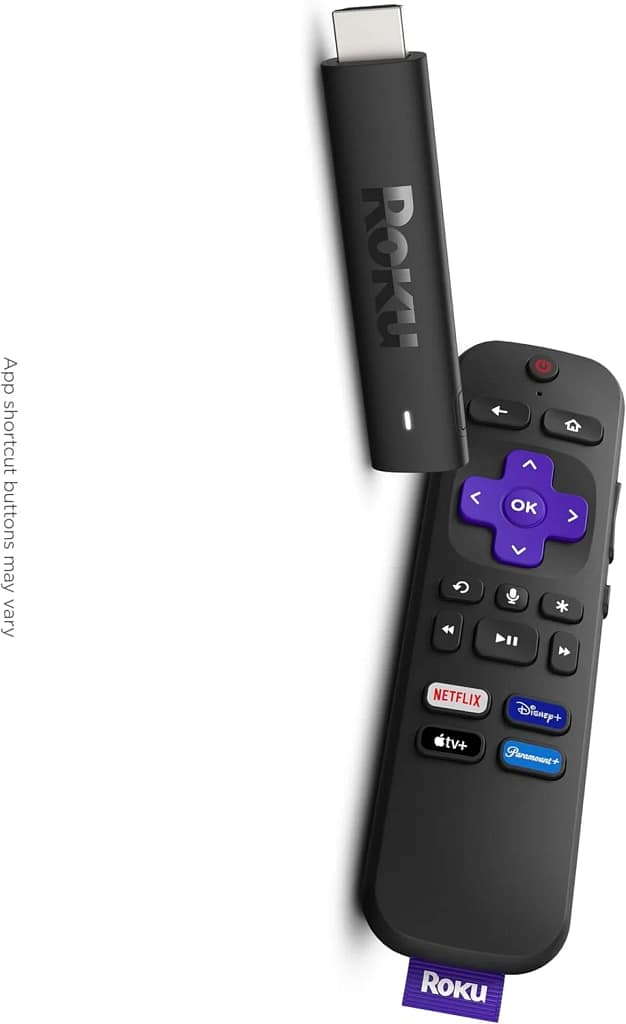
All of these devices are built for regular people. The instructions are clear, the apps are familiar, and the setup usually takes less than 10 minutes.
What You Can Do with Your “New” Smart TV
Once your device is connected, your TV can do almost everything a modern smart TV can do. You can open YouTube and stream videos, log into your Netflix or Disney+ account and watch your favorite shows, or listen to music using apps like Spotify.
If you enjoy learning new things, you can also use apps like TED, Coursera, or even YouTube tutorials all directly from your TV. Many people use these setups to turn their TV into an information hub, not just an entertainment box.
Another benefit is screen mirroring. This feature allows you to share your phone’s screen with your TV. Let’s say you have a video, photo album, or document on your phone, you can show it on the big screen in seconds.
For families, it’s also a great way to keep kids entertained or help them learn with educational content on a larger screen.
How to Choose the Right Device for You
Choosing between a Fire Stick, Chromecast, or Roku depends on your personal habits. If you’re more comfortable using a remote and prefer everything on the screen, Fire Stick or Roku is a great pick. If you enjoy using your phone and want to keep the experience on your mobile, Chromecast fits better.
Some things to think about include:
- Do you want voice control? (Fire Stick and Roku offer this.)
- Do you want to use your phone as a remote? (Chromecast is built for this.)
- Are you an iPhone user? (Apple TV might work best with your setup, though it’s more expensive.)
- Do you need access to local TV apps in your region? (Check which apps each device supports.)
Most of these devices cost far less than a new TV. You can find options starting around $25 to $50, and they last for years. It’s a small investment that saves you hundreds.
How to Set It All Up with No Experience
You don’t need to install software or know any settings. Everything happens on the screen after you plug the device into your TV’s HDMI port and connect the power cable. The device turns on automatically and walks you through the setup using easy instructions.
It will ask for your Wi-Fi name and password. After that, you can log into your apps like YouTube, Netflix, or whatever else you want. Each app has a big icon, and you simply select it with your remote or phone.
Once you’re in, you can start streaming or browsing just like on a smart TV.
Making the Most of Your Smart Setup
To improve the experience, there are a few small things you can try. Connecting a Bluetooth speaker or soundbar will upgrade your sound quality, especially if your TV has weak speakers.
Also, it’s a good idea to keep your streaming device updated. Updates usually install automatically, but you can check for updates in the settings menu. This keeps the apps running smoothly.
If you have an older TV that doesn’t support HDMI, you can still make it smart by using an HDMI-to-AV converter. This little gadget helps bridge the gap between old technology and new streaming devices. It’s a rare case, but still an option for older setups.
Related Article: How to Build Web & Mobile Apps with AI — No Coding Required
Upgrading your TV doesn’t have to mean buying a new one. With one simple device, your regular TV can become a powerful hub for entertainment, learning, and everyday convenience. Whether you want to relax with a movie, stream a new show, or listen to music while doing chores, the smart experience is only a small device away.
Related posts:
 I Converted Figma to Code with AI in Seconds — Why Are We Still Paying Frontend Developers?
 The Easiest Way to Learn Programming from Scratch in 2025
 How I Use AI Daily for Work, Blogging, and Personal Projects (No Tech Skills Needed)
 What Makes Frontend Engineers Valuable in 2025? These 5 Skills
 The Dark Side of Tech: How to Protect Your Privacy in 2025
 Top Gadgets Built by African Startups You’ve Never Heard Of
 Google’s New Pixel 10 Phones Are Almost Here: What You Should Know
 How Smart Glasses Could Replace Phones in the Next 10 Years
 How to Track Your Crypto Portfolio Using Free Local Tools
 iPhone 17 Pro Leak Reveals Internal Design, Camera Upgrade, and SIM Slot